
SAV Academy · Getting Started
The Dashboard
Purpose
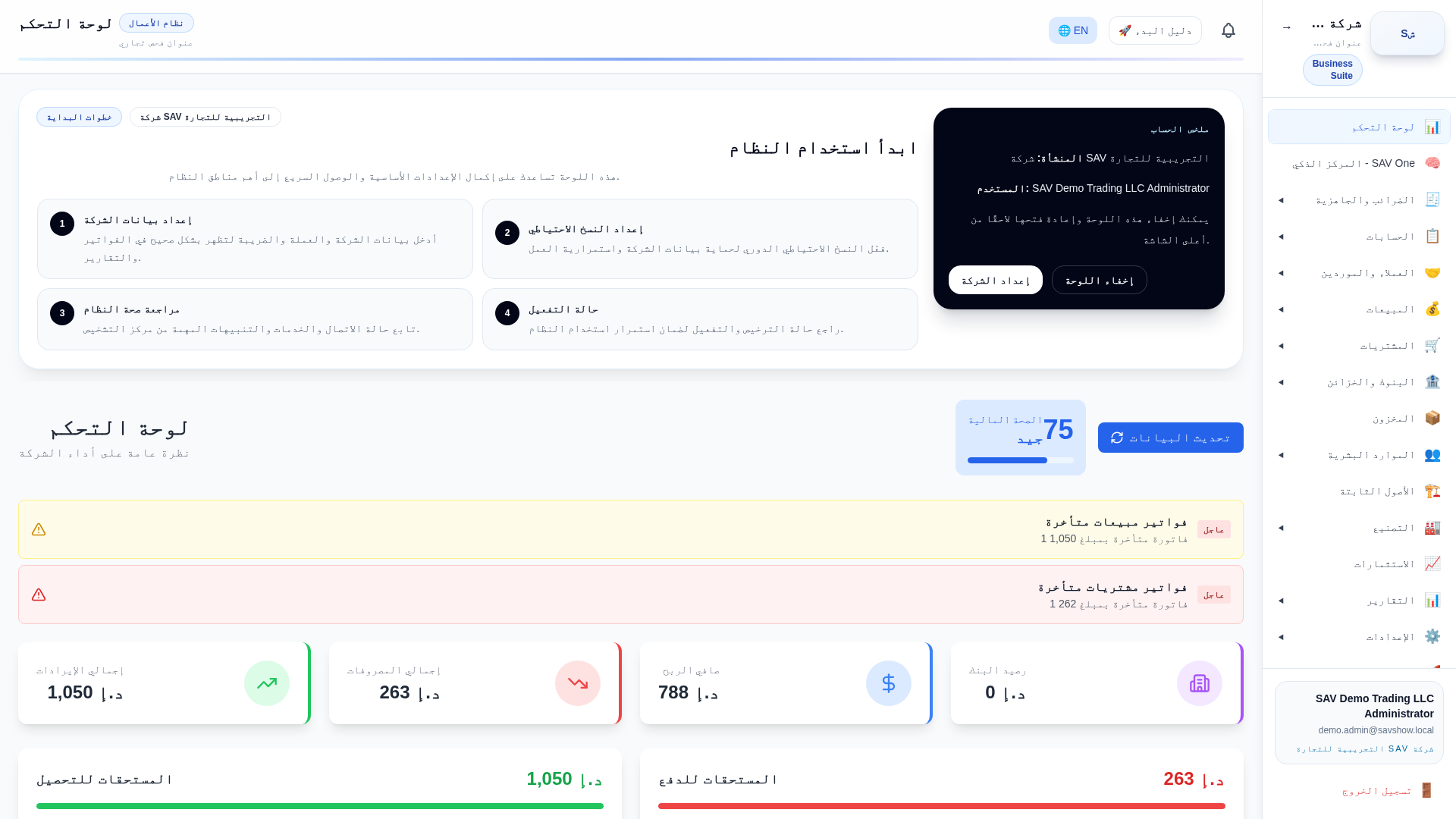
Understand the SAV dashboard: the single landing screen that summarises the financial and operational state of the selected company and branch.
Who uses it
Every user after login — owners, accountants, cashiers and administrators.
Prerequisites
- •A user account with a role
- •At least one active company and branch
Step by step
- 1Sign in with your email and password.
- 2Choose the company and branch (if you have access to more than one).
- 3Review the summary cards: receivables, payables, cash & bank, VAT position and recent activity.
- 4Use the left navigation to open any module (Sales, Purchases, Banking, Accounting, Inventory, Reports).
Key fields
| Company / Branch selector | Scopes everything you see and post to the chosen company and branch. |
| Summary cards | Read-only totals sourced from posted transactions. |
| Quick actions | Shortcuts to create the most common documents. |
Practical example
A branch cashier signs in, confirms the branch is "Main", and sees today's receipts and the outstanding customer balance before starting the day.
Accounting impact
The dashboard only reads posted balances; it never posts anything itself.
VAT impact
The VAT summary reflects tax already captured on posted invoices; it is informational.
E-invoice impact
If e-invoicing is enabled for the company, a readiness indicator can appear; it does not submit anything.
Warnings
- •Numbers reflect the selected branch only — check the branch selector before reading totals.
Common mistakes
- •Reading company-wide figures while a single branch is selected.
Tips
- •Bookmark the dashboard; it is the fastest way back to the overview.